> ## Documentation Index
> Fetch the complete documentation index at: https://docs.flipsuite.xyz/llms.txt
> Use this file to discover all available pages before exploring further.
# Teams
> Share your community with your team to manage it together, in co-op mode!
## Overview
Teams allow you to share your Flipsuite community configuration with others and assign your team members
permissions to keep sensitive data secure.
## Step 1 - Create team
To create a team, go to the [**Teams**](https://flipsuite.xyz/account/teams) tab in your account settings and click
the **Create new team** button to get started.
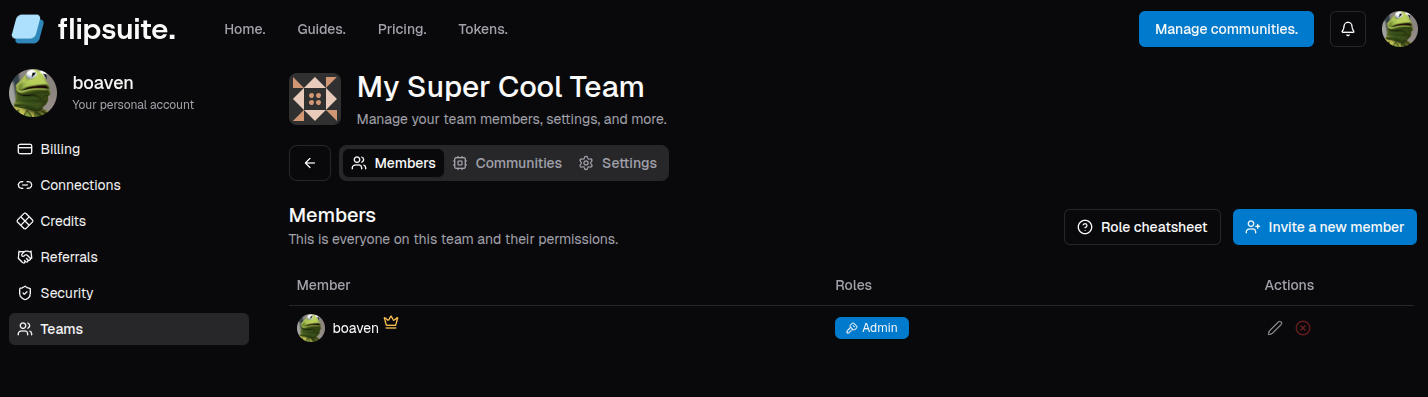
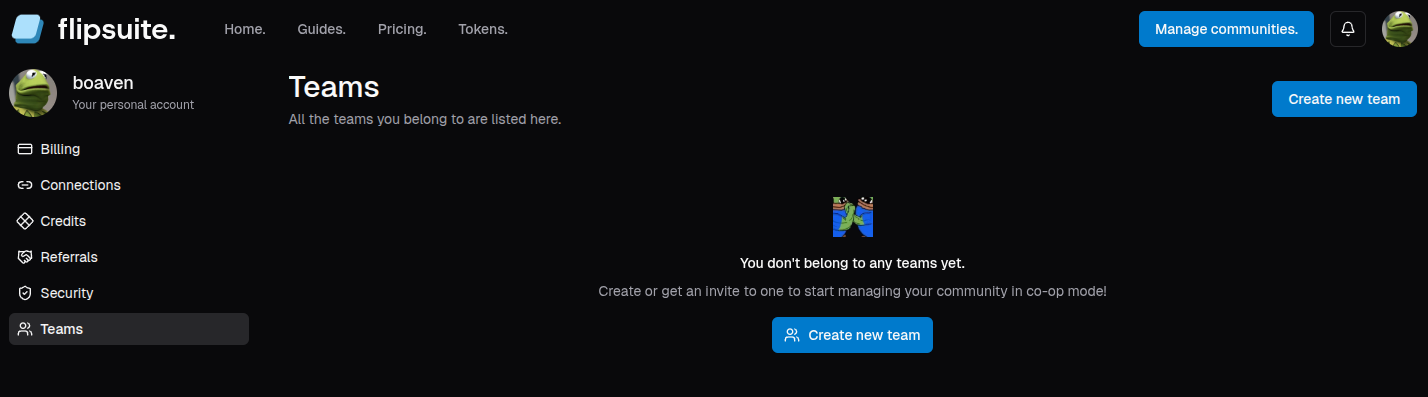 After successfully creating a team, you'll be redirected to the **Members** tab.
 ## Step 2 - Invite members
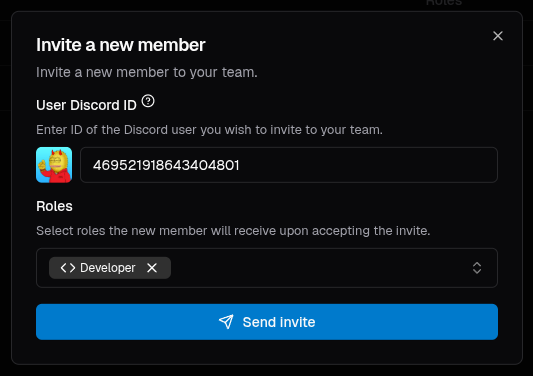
To invite a new member, click the **Invite a new member** button, enter their Discord ID, and optionally
select roles they should receive in your team once the invite is accepted.
## Step 2 - Invite members
To invite a new member, click the **Invite a new member** button, enter their Discord ID, and optionally
select roles they should receive in your team once the invite is accepted.
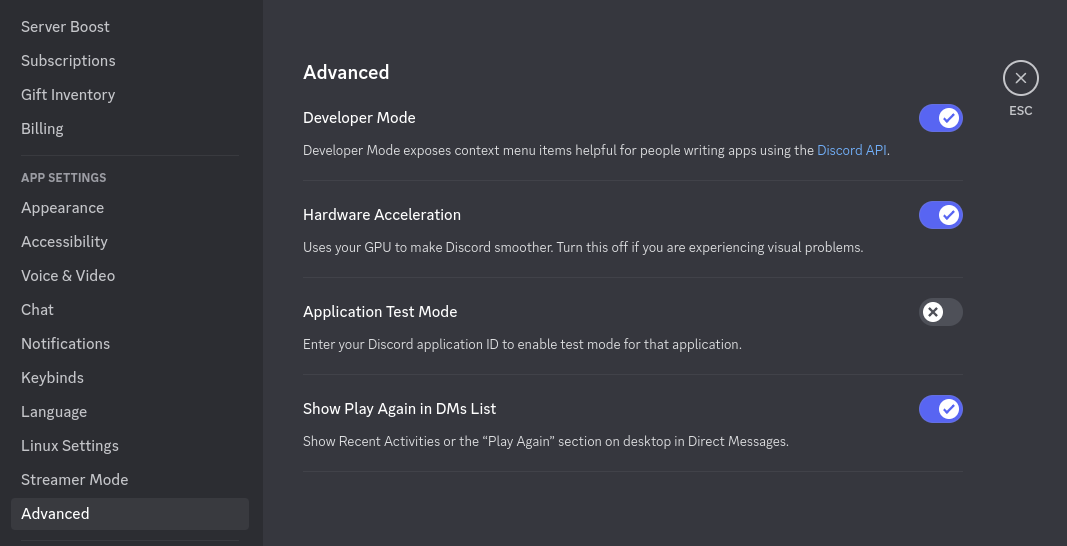
 You can get the ID of any Discord user by enabling Developer Mode in Discord settings and right-clicking on
their avatar/username.
You can get the ID of any Discord user by enabling Developer Mode in Discord settings and right-clicking on
their avatar/username.
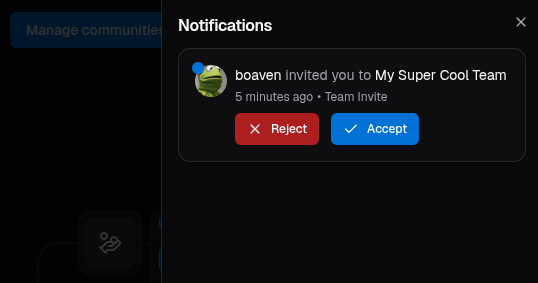
 Great! Now simply wait for them to accept your invite. Invited person will get a notification on the dashboard asking
them to accept or reject the invitation.
Great! Now simply wait for them to accept your invite. Invited person will get a notification on the dashboard asking
them to accept or reject the invitation.
 ## Step 3 - Set roles
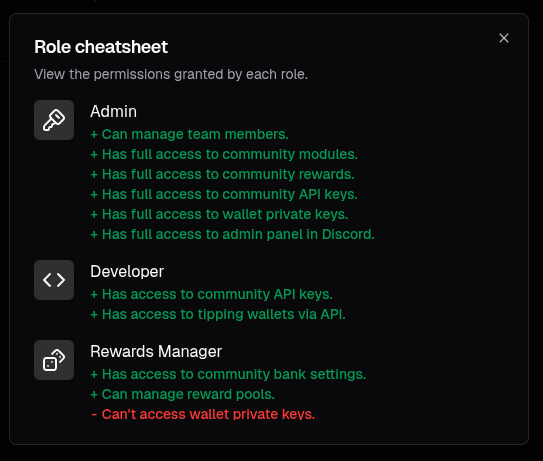
You can assign various roles to your team members to give them access to your community. To view all possible roles
and what permissions they grant, click the **Role cheatsheet** button.
## Step 3 - Set roles
You can assign various roles to your team members to give them access to your community. To view all possible roles
and what permissions they grant, click the **Role cheatsheet** button.
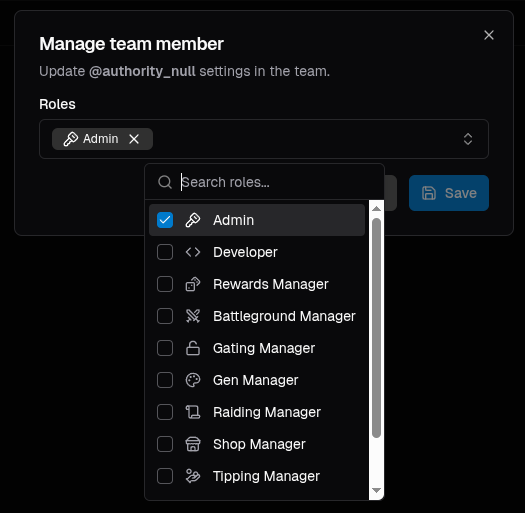
 To manage the roles of your team members, simply click the edit button next to their name on the list and a dialog like
the one in the image below will appear.
To manage the roles of your team members, simply click the edit button next to their name on the list and a dialog like
the one in the image below will appear.
 ## Step 4 - Move community to the team
To move your community to the team, switch to the **Communities** tab in your team.
## Step 4 - Move community to the team
To move your community to the team, switch to the **Communities** tab in your team.
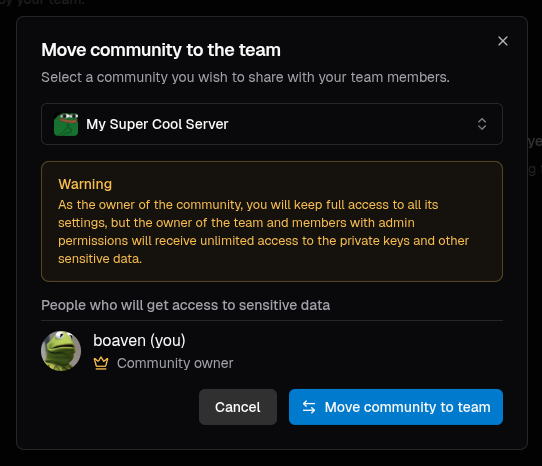
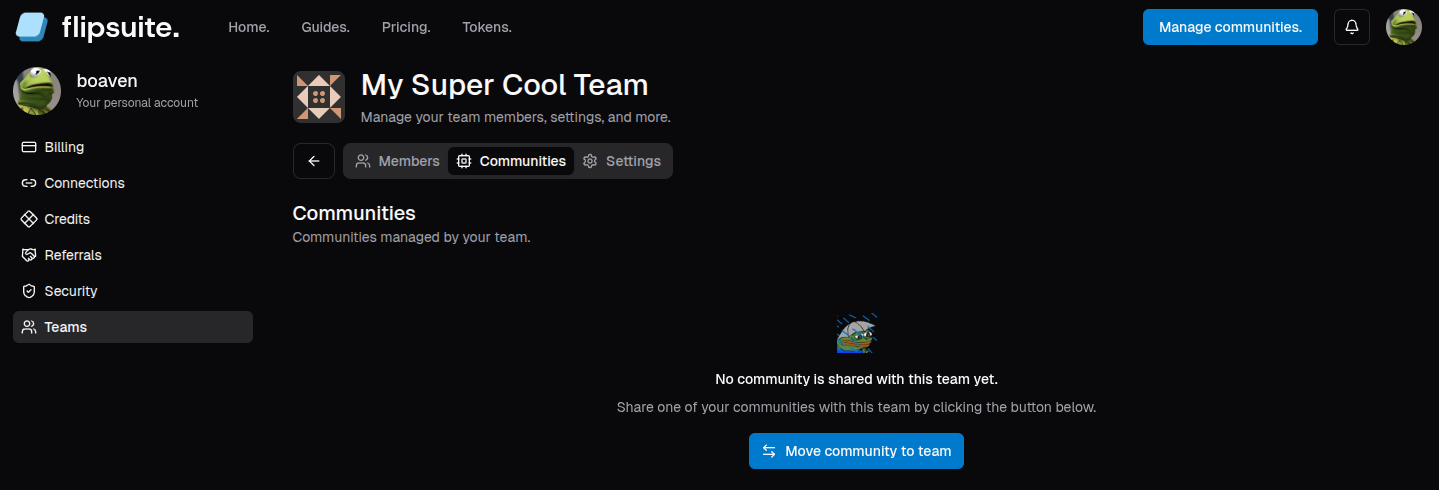 Here, click the **Move community to team** button and select a community you'd like to move.
Before moving your community to the team, you can see which members of a team will get access
to sensitive community data like wallet private keys.
Here, click the **Move community to team** button and select a community you'd like to move.
Before moving your community to the team, you can see which members of a team will get access
to sensitive community data like wallet private keys.
 Good job! You can now delegate community management to your team members!