> ## Documentation Index
> Fetch the complete documentation index at: https://docs.flipsuite.xyz/llms.txt
> Use this file to discover all available pages before exploring further.
# Creating airdrops
> Learn how to create airdrops using your Flipwallet.
## Overview
With Flipsuite, you can create airdrops directly in Discord through airdrop commands.
There are multiple ways to create airdrops which we'll explain in detail down below.
Airdrops do not immediately send tokens to recipients, but require people to explicitly join the airdrop by
interacting with the airdrop message in Discord. If you're looking to instantly send tokens in bulk to people,
check out the [/tip](/modules/tipping/commands/tip) command page.
## Commands
### `/drop token`
This command is used to create airdrops with one of the [supported tokens](https://flipsuite.xyz/tokens).
One of the [supported tokens](https://flipsuite.xyz/tokens) you want to airdrop.
Amount to airdrop. You can use "%" and "\$" for relative amounts.
Countdown duration in minutes before the airdrop is distributed.
Note that will be displayed in the airdrop message.
Whether you want to create the airdrop anonymously or not.
A total number of people who can enter the airdrop.
Users and/or roles allowed to enter the airdrop. Start typing "@" and select one or more users/roles.
Users and/or roles forbidden from entering the airdrop. Start typing "@" and select one or more users/roles.
Number of consecutive airdrops to create.
Delay (in minutes) between consecutive airdrops.
## Examples
### Create token airdrop
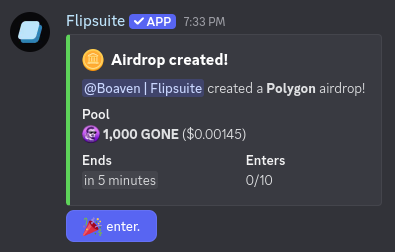
To create a default airdrop that can be entered by everyone, simply choose a token and its amount.
 **Result:**
 ### Create airdrop for specific users
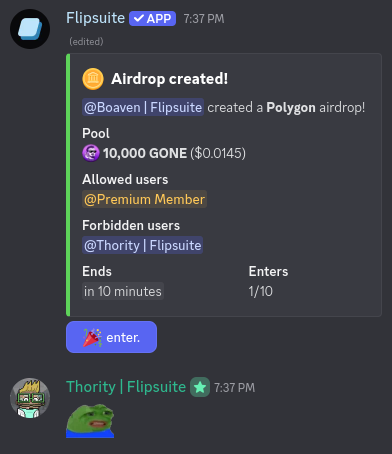
To create an airdrop that can be entered only by specific users, mention users and/or roles that are allowed to enter
in the `allowed-users` command argument. If you want to restrict some users and/or roles from entering the airdrop,
mention them in the `forbidden-users` command argument instead.
### Create airdrop for specific users
To create an airdrop that can be entered only by specific users, mention users and/or roles that are allowed to enter
in the `allowed-users` command argument. If you want to restrict some users and/or roles from entering the airdrop,
mention them in the `forbidden-users` command argument instead.
 **Result:**
 ### Create repeating airdrop
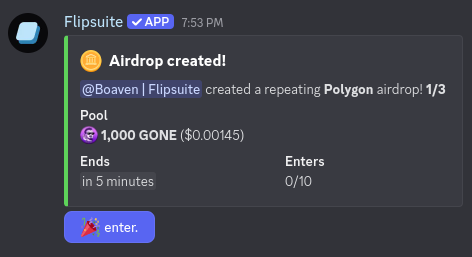
To create a repeating airdrop, simply fill in the `count` and `delay` command fields. Airdrops created this way will
repeat one after another with the delay set by the `delay` field.
For example, to schedule an airdrop that is created 5 minutes after the previous one ends for 3 consecutive times,
you would enter `count:3` and `delay:5`, as shown in the screenshot below.
### Create repeating airdrop
To create a repeating airdrop, simply fill in the `count` and `delay` command fields. Airdrops created this way will
repeat one after another with the delay set by the `delay` field.
For example, to schedule an airdrop that is created 5 minutes after the previous one ends for 3 consecutive times,
you would enter `count:3` and `delay:5`, as shown in the screenshot below.
 **Result:**
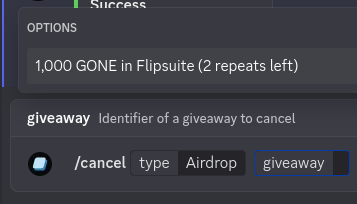
 To cancel a repeating airdrop, just execute the `/cancel type:Airdrop` command and select a repeating airdrop to cancel.
 ## Settings
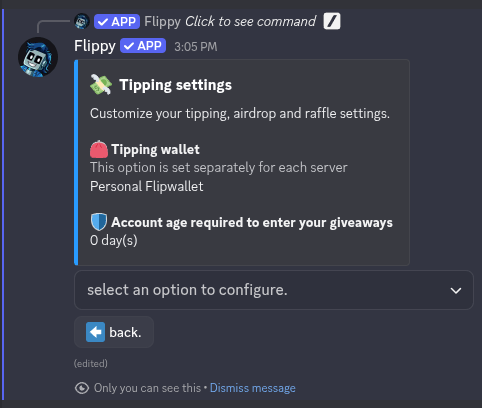
You can modify the following account-wide tipping settings in your [/profile](/flippy/commands/profile):
* The minimum account age that's required to enter your airdrops and raffles.
## Settings
You can modify the following account-wide tipping settings in your [/profile](/flippy/commands/profile):
* The minimum account age that's required to enter your airdrops and raffles.