> ## Documentation Index
> Fetch the complete documentation index at: https://docs.flipsuite.xyz/llms.txt
> Use this file to discover all available pages before exploring further.
# Activity
> View point system transactions, and credit or debit users manually.
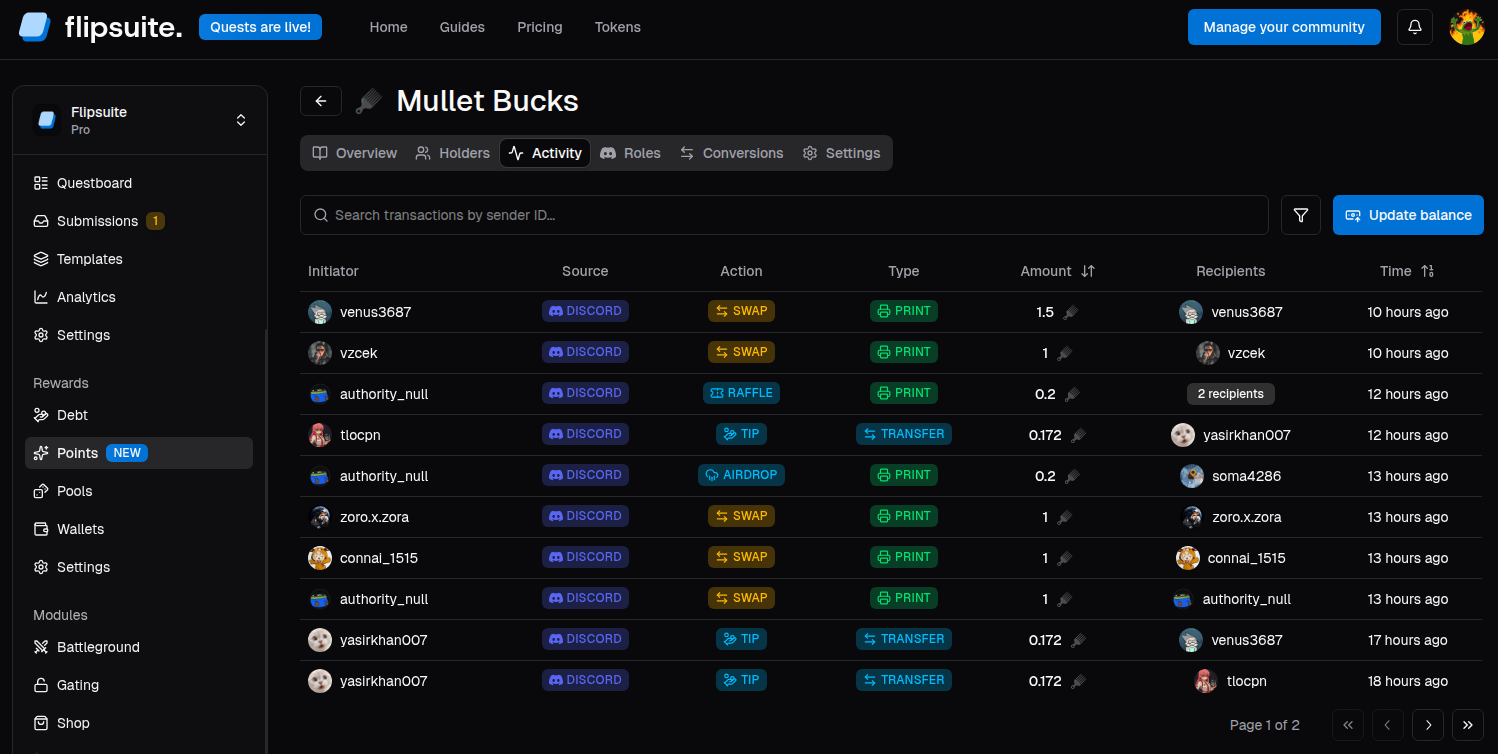 The **Activity** tab is the operational ledger for every point system. It shows you who initiated a transaction,
where it came from, and how much user balances changed.
## Key transaction types
Each point system transaction falls into one of the following categories:
* **Print**: Points were created and a total point system's supply was increased.
* **Transfer**: Points were transferred between two or more users.
* **Burn**: Points were destroyed and a total point system's supply was reduced.
Examples:
* Points rewarded for completing a quest -> **Print**
* Points tipped from one user to another -> **Transfer**
* Points credited dashboard or via API -> **Print**
* Points debited dashboard or via API -> **Burn**
* Points swapped for another points -> **Burn**
* Points received from swapping -> **Print**
* Points spent in storefronts -> **Burn**
## Update balances manually
To update point system balances from the dashboard:
1. Open the **Activity** tab for the point system.
2. Click **Update balance**.
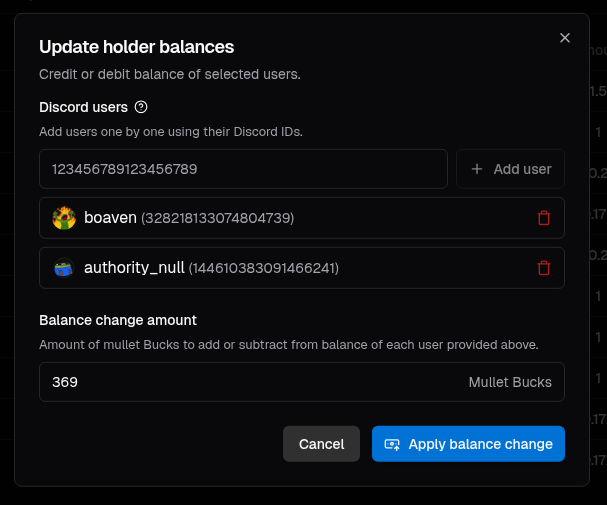
3. Add one or more users by their Discord IDs.
4. Enter the balance change to apply to each selected user.
5. Submit the change by clicking the **Apply balance change** button.
The **Activity** tab is the operational ledger for every point system. It shows you who initiated a transaction,
where it came from, and how much user balances changed.
## Key transaction types
Each point system transaction falls into one of the following categories:
* **Print**: Points were created and a total point system's supply was increased.
* **Transfer**: Points were transferred between two or more users.
* **Burn**: Points were destroyed and a total point system's supply was reduced.
Examples:
* Points rewarded for completing a quest -> **Print**
* Points tipped from one user to another -> **Transfer**
* Points credited dashboard or via API -> **Print**
* Points debited dashboard or via API -> **Burn**
* Points swapped for another points -> **Burn**
* Points received from swapping -> **Print**
* Points spent in storefronts -> **Burn**
## Update balances manually
To update point system balances from the dashboard:
1. Open the **Activity** tab for the point system.
2. Click **Update balance**.
3. Add one or more users by their Discord IDs.
4. Enter the balance change to apply to each selected user.
5. Submit the change by clicking the **Apply balance change** button.
 ### How manual updates work
* A **positive** amount credits each selected user, printing new points.
* A **negative** amount debits each selected user, destroying points.
* The same amount change is applied to every selected user.
Manual dashboard changes are recorded in the transaction history as well, which makes the **Activity** tab the source
of truth for auditing balance changes.
### When to use manual management
Use manual balance updates when you need to:
* Grant bonus points to selected members.
* Correct balances after an external event.
* Run one-off campaigns outside Flipsuite quests.
* Remove balances for moderation or policy reasons.
### How manual updates work
* A **positive** amount credits each selected user, printing new points.
* A **negative** amount debits each selected user, destroying points.
* The same amount change is applied to every selected user.
Manual dashboard changes are recorded in the transaction history as well, which makes the **Activity** tab the source
of truth for auditing balance changes.
### When to use manual management
Use manual balance updates when you need to:
* Grant bonus points to selected members.
* Correct balances after an external event.
* Run one-off campaigns outside Flipsuite quests.
* Remove balances for moderation or policy reasons.