> ## Documentation Index
> Fetch the complete documentation index at: https://docs.flipsuite.xyz/llms.txt
> Use this file to discover all available pages before exploring further.
# Sharing
> Collaborate with other communities to cross-share quests.
## Overview
Community collabs allow different communities to form partnerships, making it easier to grow together and cross-promote content.
By establishing a collaboration, you can access shared quests from partner communities and display them directly to your own community.
 ## How it Works
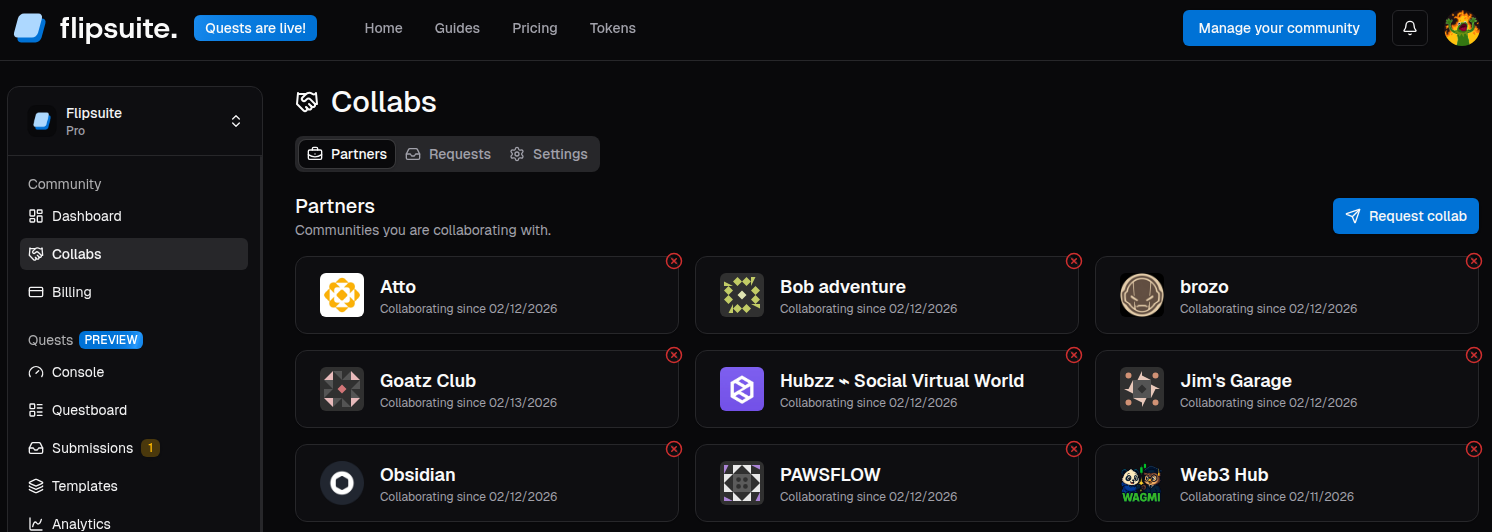
To start a partnership, navigate to the **Collabs > Requests** tab and search for the community you wish to work with.
Sending a request allows the other community's administrators to review your profile before accepting.
### Shared Visibility
Once a collab request is accepted, both communities gain visibility into each other's quests.
Only quests specifically created with the **"Shared"** visibility setting will be visible to partner communities.
Private quests remain hidden.
### Cross-Sharing & Automation
After partnering, you can share quests from partner communities in two ways:
1. **Manually:** Using the `/quest share` command in Discord.
2. **Automatically:** Create a dedicated channel with an automated quest feed.
A dedicated quest feed can be set up by navigating to the partner community's settings by tapping on the community's
card in the **Collabs > Partners** tab.
## How it Works
To start a partnership, navigate to the **Collabs > Requests** tab and search for the community you wish to work with.
Sending a request allows the other community's administrators to review your profile before accepting.
### Shared Visibility
Once a collab request is accepted, both communities gain visibility into each other's quests.
Only quests specifically created with the **"Shared"** visibility setting will be visible to partner communities.
Private quests remain hidden.
### Cross-Sharing & Automation
After partnering, you can share quests from partner communities in two ways:
1. **Manually:** Using the `/quest share` command in Discord.
2. **Automatically:** Create a dedicated channel with an automated quest feed.
A dedicated quest feed can be set up by navigating to the partner community's settings by tapping on the community's
card in the **Collabs > Partners** tab.
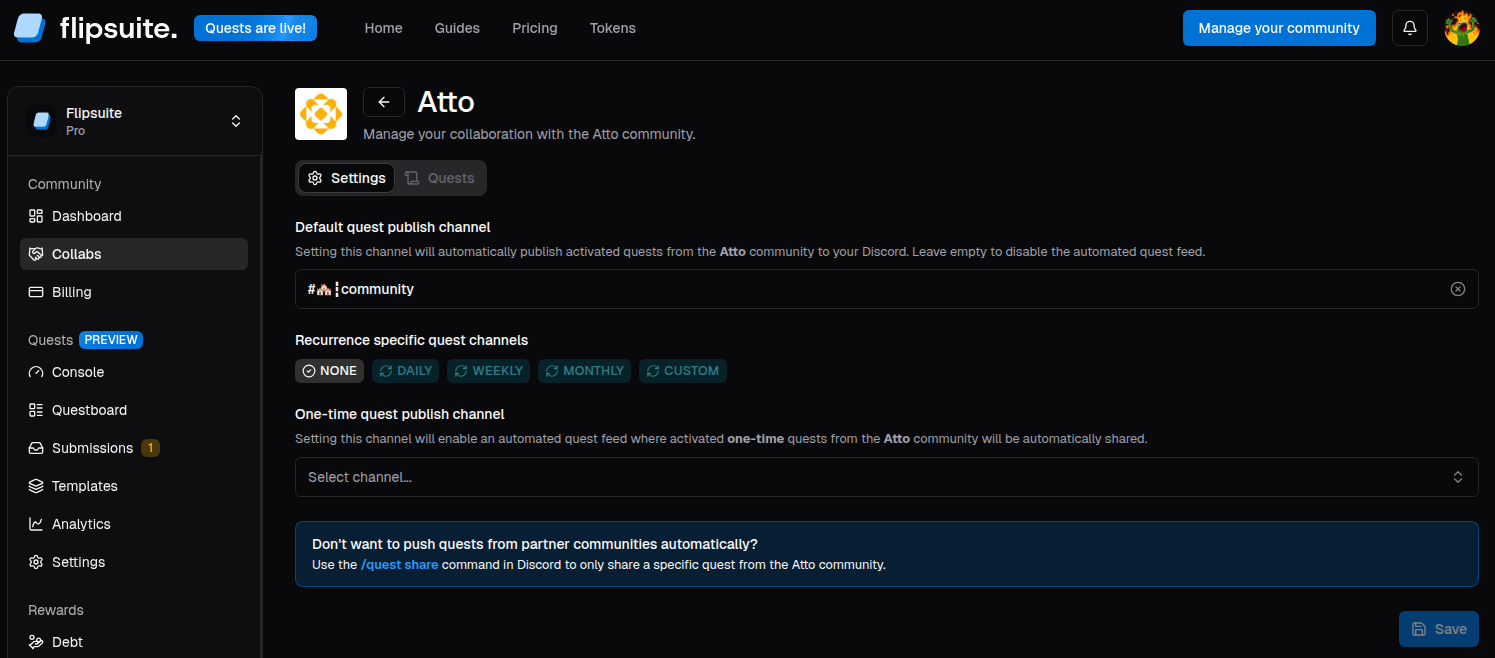 Creating a dedicated channel ensures your members stay up to date with the latest activities from your partners
without manual intervention.
## Settings & Privacy
By default, every community is open to receiving collab requests. If you prefer to manage your partnerships more privately:
1. Navigate to the **Collabs > Settings** tab.
2. Toggle the **"Open to collabs"** option.
When disabled, other communities will not be able to send you new requests, though existing partnerships will remain active.
Creating a dedicated channel ensures your members stay up to date with the latest activities from your partners
without manual intervention.
## Settings & Privacy
By default, every community is open to receiving collab requests. If you prefer to manage your partnerships more privately:
1. Navigate to the **Collabs > Settings** tab.
2. Toggle the **"Open to collabs"** option.
When disabled, other communities will not be able to send you new requests, though existing partnerships will remain active.