> ## Documentation Index
> Fetch the complete documentation index at: https://docs.flipsuite.xyz/llms.txt
> Use this file to discover all available pages before exploring further.
# Templates
> Save time by using pre-configured quest and task templates.
## Quest templates
A quest template is a blueprint for a full quest, including its configuration, tasks, and rewards.
They allow you to quickly launch new quests without starting from scratch.
### Creating a quest template
To save a quest as a template:
1. Go to the **Templates > Quests** tab.
2. Click the **Create quest template** button.
3. Configure the template as needed like it is a regular quest.
4. Click **Save template** in the last quest builder.
5. It will now appear in your library of available templates.
### Using a quest template
When creating a new quest, you can choose the **Create quest from template** option.
This will show you a list of all available templates:
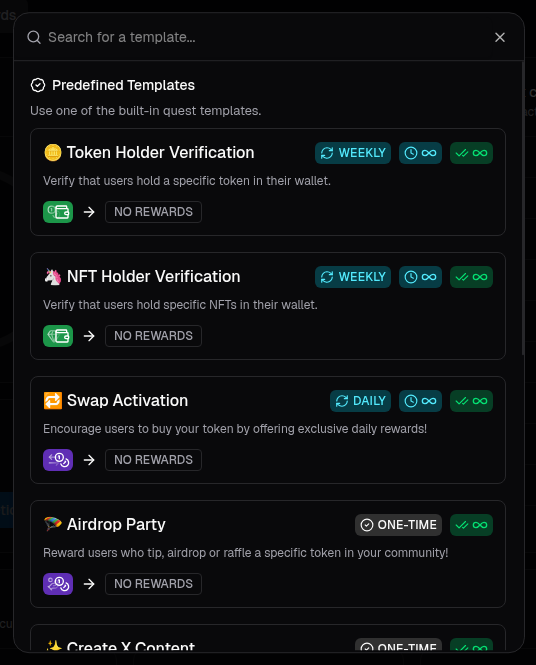 Choosing a template will automatically populate the quest's configuration that you can modify as needed.
## Task templates
Task templates are pre-configured versions of individual tasks (e.g., a "Token Balance" task with your token details already filled in).
They allow you to build new quests using common tasks without having to manually configure them.
### Creating a task template
You can create and manage task templates in the **Quest Settings > Task Templates** section of the dashboard.
To save a task as a template:
1. Go to the **Templates > Tasks** tab.
2. Click the **Create task template** button.
3. Choose the task type and configure it as needed.
4. Click **Save** once you're done.
5. It will now appear in your library of available tasks.
### Using a task template
When adding tasks to a quest, you will see a list of all available task templates at the top of the task library.
Choosing a template will automatically populate the quest's configuration that you can modify as needed.
## Task templates
Task templates are pre-configured versions of individual tasks (e.g., a "Token Balance" task with your token details already filled in).
They allow you to build new quests using common tasks without having to manually configure them.
### Creating a task template
You can create and manage task templates in the **Quest Settings > Task Templates** section of the dashboard.
To save a task as a template:
1. Go to the **Templates > Tasks** tab.
2. Click the **Create task template** button.
3. Choose the task type and configure it as needed.
4. Click **Save** once you're done.
5. It will now appear in your library of available tasks.
### Using a task template
When adding tasks to a quest, you will see a list of all available task templates at the top of the task library.
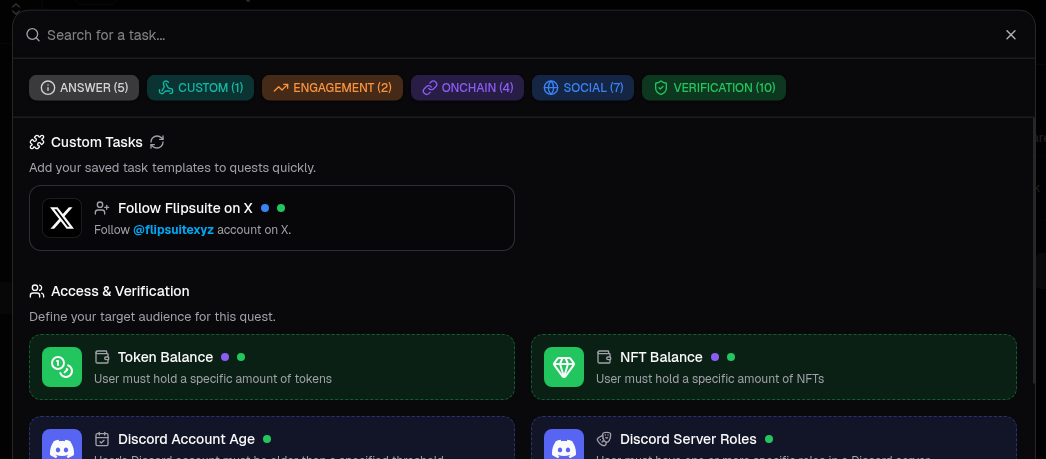 Simply click on the one you want to use and it will be added to the quest.