> ## Documentation Index
> Fetch the complete documentation index at: https://docs.flipsuite.xyz/llms.txt
> Use this file to discover all available pages before exploring further.
# Quickstart
> Learn how to set up Flippy in your server.
## Step 1 - Invite Flippy to your server
If [Flippy](/flippy/introduction#who-is-flippy) (our Discord bot) isn't in your server yet, click [here](https://discord.com/oauth2/authorize?client_id=1150448986264698980\&permissions=395405806672\&integration_type=0\&scope=bot) to invite it.
| Bot Permissions | Required | Reason |
| --------------------------------------------------------------------------- | -------- | ----------------------------------------------------------------------------------------------------------------------------- |
| View Channels
Send Messages
Embed Links
Read Message History | ✅ | Flippy requires it to send messages in your server. |
| Use External Emoji | ✅ | Required to show custom emojis for tokens in messages. |
| Add Reactions | ❌ | Required if you want Flippy to react to messages. |
| Attach Files | ❌ | Required if you want Flippy to show images in messages. |
| Send Messages in Threads | ❌ | Flippy needs this permission to send messages in threads. |
| Create Public Threads
Create Private Threads
Manage Threads | ❌ | Flippy needs this permission to open threads for some requests to keep the main chat clean. |
| Manage Channels | ❌ | Required to automatically create an admin-only alerts channel when the bot is invited. Can be revoked afterwards. |
| Manage Roles | ❌ | Required to grant roles to users during verification, or when members receive roles as quest rewards or storefront purchases. |
## Step 2 - Setup alerts channel
If you enabled the **Manage Channels** permission when inviting Flippy to your server, a channel category named
**Flipsuite** with the `🚨alerts` channel in it should get created:
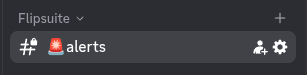 This channel will most likely be created at the bottom of your channel list. If you still can't find
it in your server, use the `/setup` command to spawn it manually.
This channel will most likely be created at the bottom of your channel list. If you still can't find
it in your server, use the `/setup` command to spawn it manually.
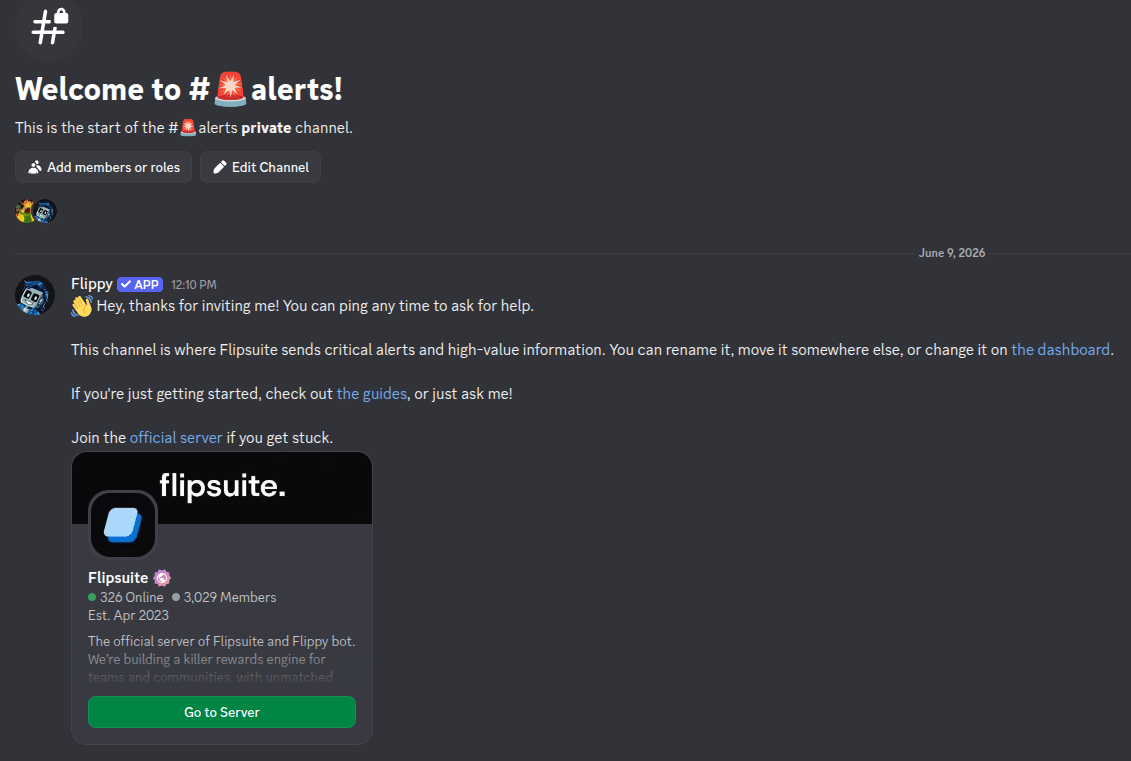 The alerts channel is where you will receive various alerts from Flipsuite, such as when your rewards wallet balance is
empty and needs to be refilled, and other notifications that require your immediate attention. You can rename this
channel and move it somewhere else, but it's recommended to not delete this channel.
## Step 3 - Activate your server
Server activation is a one-click process of registering your server within Flipsuite. To activate your server, simply
log into [the dashboard](https://flipsuite.xyz/manage) and go to the **Manage communities** tab.
The alerts channel is where you will receive various alerts from Flipsuite, such as when your rewards wallet balance is
empty and needs to be refilled, and other notifications that require your immediate attention. You can rename this
channel and move it somewhere else, but it's recommended to not delete this channel.
## Step 3 - Activate your server
Server activation is a one-click process of registering your server within Flipsuite. To activate your server, simply
log into [the dashboard](https://flipsuite.xyz/manage) and go to the **Manage communities** tab.
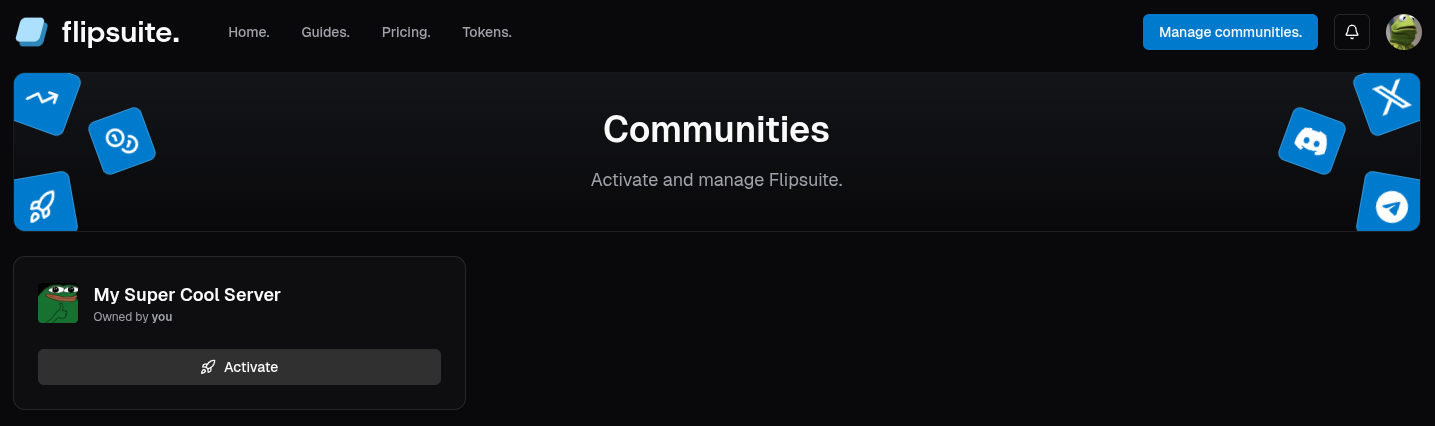 From the list of servers you have admin permissions in, pick yours and simply click the **Activate** button.
This will allow you to manage your community via Flipsuite dashboard.
Each server can only be activated once. If someone else from your team has already activated your server,
ask them to create a [team](/account/teams) and invite you to it so you can manage it together.
## Step 4 - What's next?
Set up one of the Flipsuite modules below to add more utility and fun to your server, or create a team to
manage your community together with your friends or co-workers.
### Essentials
Get familiar with Flipsuite and its essential features.
Learn how to engage your community with interactive quests and rewards.
Learn what points are and how they can power your community economy.
Get familiar with the Flipwallet and Flippy, a digital wallet assistant layered over Flipsuite.
Share your community with your team to manage it together and delegate responsibilities.
### Modules
Deep dive into one of the Flipsuite modules below to add more utility and fun to your server.
Learn how to use gating module in your server to automatically verify holders and members.
Create branded storefronts for roles, points, and custom rewards.
Learn how to swap and bridge tokens directly in Discord using your Flipwallet.
Learn how to airdrop, raffle and tip tokens in your server.
From the list of servers you have admin permissions in, pick yours and simply click the **Activate** button.
This will allow you to manage your community via Flipsuite dashboard.
Each server can only be activated once. If someone else from your team has already activated your server,
ask them to create a [team](/account/teams) and invite you to it so you can manage it together.
## Step 4 - What's next?
Set up one of the Flipsuite modules below to add more utility and fun to your server, or create a team to
manage your community together with your friends or co-workers.
### Essentials
Get familiar with Flipsuite and its essential features.
Learn how to engage your community with interactive quests and rewards.
Learn what points are and how they can power your community economy.
Get familiar with the Flipwallet and Flippy, a digital wallet assistant layered over Flipsuite.
Share your community with your team to manage it together and delegate responsibilities.
### Modules
Deep dive into one of the Flipsuite modules below to add more utility and fun to your server.
Learn how to use gating module in your server to automatically verify holders and members.
Create branded storefronts for roles, points, and custom rewards.
Learn how to swap and bridge tokens directly in Discord using your Flipwallet.
Learn how to airdrop, raffle and tip tokens in your server.