> ## Documentation Index
> Fetch the complete documentation index at: https://docs.flipsuite.xyz/llms.txt
> Use this file to discover all available pages before exploring further.
# Orders
> Track storefront purchases and manage custom item fulfillment.
## Where to find orders
Navigate to the **Storefronts** area in your community dashboard and click the **Orders** tab.
## Payment status vs delivery status
Storefront orders and storefront fulfillments track different parts of the purchase lifecycle:
* **Payment status** shows whether checkout succeeded.
* **Delivery status** shows whether a specific deliverable has been completed.
Typical behavior after a successful payment:
* Role and points deliverables move to `FULFILLED` immediately.
* Custom deliverables move to `PROCESSING`, and an admin needs to finish the delivery.
* Failed delivery attempts can appear as `FAILED` with a reason in the order details.
## Manage custom item orders
Open an order row to inspect the fulfillment details.
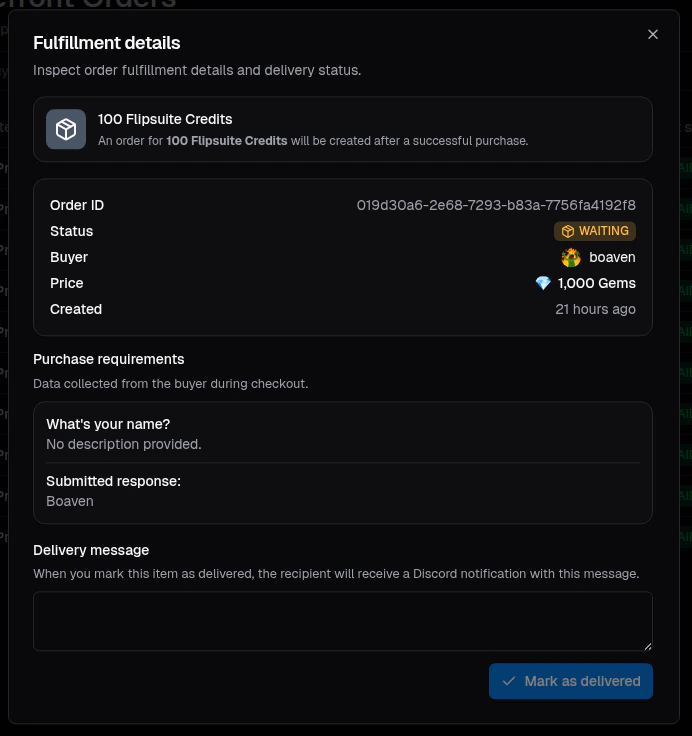 For custom deliverables, the details dialog lets you:
* Review the buyer, recipient, price, and delivery status
* Inspect any checkout data collected through item requirements
* Mark the deliverable as delivered
When marking a custom deliverable as delivered, you can include a **delivery message**.
That message is sent to the recipient on Discord as confirmation.
For custom deliverables, the details dialog lets you:
* Review the buyer, recipient, price, and delivery status
* Inspect any checkout data collected through item requirements
* Mark the deliverable as delivered
When marking a custom deliverable as delivered, you can include a **delivery message**.
That message is sent to the recipient on Discord as confirmation.